
Introduction
If you’re running a website and not fully using Google Search Console, you’re leaving serious growth on the table. Most website owners log in, check a few numbers, and log out — never realizing how much actionable data they’re missing. According to Google’s official documentation, this tool gives you direct insight into how Google crawls, indexes, and ranks your site — completely free of charge.
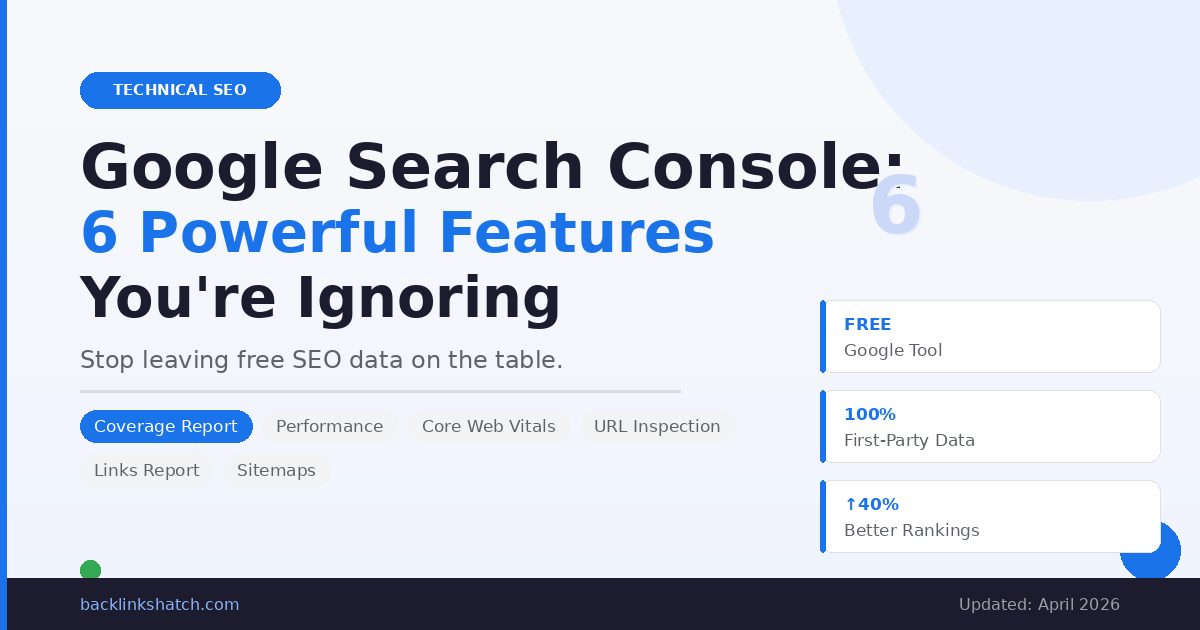
In this guide, we’ll walk through six powerful features most people overlook. Whether you’re an SEO beginner or a seasoned digital marketer, these features will reshape how you approach organic search optimization, website performance, and content strategy.
Table of Contents
Feature 1 — Coverage Report: Find and Fix Indexing Errors Fast
What the Coverage Report Actually Shows You
The Coverage Report inside Google Search Console is your direct window into how Googlebot sees and indexes your site. It breaks pages into four categories — Error, Valid with Warnings, Valid, and Excluded — and each one tells a different story. Most people glance at it and move on if there’s no giant red number. That’s a costly mistake.
Crawl errors, indexing issues, and soft 404s all surface here before they damage your rankings. If a page shows ‘Discovered — currently not indexed,’ it signals crawl budget problems or thin content quality issues — both of which quietly suppress your organic visibility. According to Google’s crawling and indexing overview, understanding how Googlebot processes your pages is foundational to strong technical SEO.
How to Use It to Protect Your Rankings
The smartest SEOs review this report weekly. Here’s what to watch for and act on immediately:
- Server errors (5xx) — Google couldn’t reach your page. Fix hosting issues immediately or risk losing indexed pages.
- Redirect errors — Broken redirect chains confuse Googlebot and waste crawl budget.
- Submitted URL not found (404) — You submitted a URL in your sitemap that no longer exists.
- Excluded pages — Check if important pages are excluded due to noindex tags or canonical conflicts.
Coverage Status Reference Table:
| Status | What It Means | Action Required |
| Error | Google cannot index the page | Fix immediately |
| Valid with Warning | Indexed but has issues | Review and monitor |
| Valid | Properly indexed | No action needed |
| Excluded | Not indexed by choice or error | Audit carefully |
Fixing Coverage Report issues directly improves your crawlability, indexation rate, and search visibility. Pair this with a proper SEO audit process for maximum impact.
Feature 2 — Google Search Console Performance Report: The Data Goldmine
Mining CTR and Impression Data Like a Pro
The Performance Report in Google Search Console is where real keyword intelligence lives — and most people only look at clicks. That’s like reading only the first page of a book. When you analyze impressions, click-through rate (CTR), and average position together, patterns emerge that can completely reshape your content optimization strategy.
Here’s the power move: filter for queries where the average position is between 8 and 20 with high impressions but low CTR. These are your quick-win keywords — pages nearly on page one needing a small push. Improving the meta title, meta description, or adding topical depth can move them into the top 5. Pair this data with your search engine marketing intelligence strategy for compounded results.
Using Search Analytics for Content Decisions
Search analytics data should drive every content decision you make. Here is how to extract maximum value from this single report:
- Compare date ranges — Identify traffic drops after a Google core algorithm update.
- Filter by device — Spot weak mobile search performance and fix mobile usability issues.
- Filter by country — If you’re getting impressions from untargeted regions, consider geo-targeted content.
- Sort by CTR — Find strong-ranking pages with poor CTR, then rewrite titles and descriptions to compel clicks.
This single report, used correctly, rivals most paid SEO tools on the market. It’s pure first-party data straight from Google.
Feature 3 — URL Inspection Tool: Your Page-Level Diagnosis Engine
How to Inspect Any URL Like an SEO Expert
The URL Inspection Tool lets you see exactly how Google views any individual page on your site. You can check the last crawl date, view the rendered HTML, verify which canonical URL Google selected, and request indexing for new or updated pages. Most users only use it to request indexing — but the rendered page view is where the real diagnostic power hides.
Click ‘View Tested Page’ and switch to the Screenshot tab to see your page exactly as Googlebot renders it. If your page looks broken or JavaScript isn’t loading, Google sees the same broken version. This is critical for sites built on JavaScript frameworks like React or Vue, where dynamic content may not be crawled correctly.
What the Rendered Page View Reveals
Every URL inspection should answer these critical questions before you move on:
- Canonical tag — Is it pointing to the right URL, or is Google choosing a different canonical?
- Mobile-friendliness — Does the page pass Google’s mobile usability standards?
- Structured data — Are schema markup elements like FAQ, Article, or Product detected correctly?
- Indexing status — Does it show ‘URL is on Google’ or is it stuck in a pending state?
- Coverage details — Are there any warnings about page quality, noindex conflicts, or canonicalization?
Regular use of this tool prevents silent ranking drops caused by rendering failures, canonical errors, and structured data misconfiguration — three issues that are almost invisible without URL-level inspection.
Feature 4 — Core Web Vitals Report: Page Experience Is a Ranking Signal
Understanding LCP, FID, and CLS in Real Terms
Core Web Vitals are Google’s official page experience signals that directly influence rankings. According to web.dev by Google, the three core metrics — Largest Contentful Paint (LCP), First Input Delay (FID), and Cumulative Layout Shift (CLS) — measure how fast, responsive, and visually stable your pages are for real users.
The Core Web Vitals report segments pages into ‘Good,’ ‘Needs Improvement,’ and ‘Poor’ using field data from real Chrome users — not lab simulations. This makes it more valuable than PageSpeed Insights lab scores alone. LCP should be under 2.5 seconds. CLS should stay below 0.1. Slow LCP usually points to unoptimized images or render-blocking resources. Poor CLS often comes from ads or images without defined dimensions, shifting the layout on load. Read our full breakdown of Core Web Vitals 2026: 7 Critical Fixes You Need Now for actionable fix steps.
How to Prioritize Core Web Vitals Fixes
Not all pages need fixing equally. Prioritize your fixes in this order for maximum SEO impact:
- High-traffic pages rated ‘Poor’ — Fix these first. They’re losing rankings and users simultaneously.
- Category and pillar pages — These link to many other pages, so improving them lifts the whole site.
- Landing pages used in campaigns — Poor Core Web Vitals here directly kill conversion rates.
- Pages targeting competitive keywords — Every ranking edge matters in high-competition niches.
Improving Core Web Vitals doesn’t just boost rankings — it lowers bounce rate and lifts user engagement, two signals that compound your SEO gains over time.
Feature 5 — Links Report: Understand Your Backlink Profile and Internal Structure
Analyzing External Links for SEO Authority
The Links Report provides two powerful datasets: your external backlinks and your internal linking structure. Most people skip this because they think paid tools like Ahrefs or SEMrush do it better — but Search Console’s link data comes directly from Google, making it the most authoritative source available for understanding how link equity flows through your site.
For external links, examine your top linked pages and top linking domains. If your homepage holds 90% of all backlinks while your money pages have almost none, you have a link equity distribution problem. Use this data to guide your link building strategy, including broken link building and outreach campaigns. You can also reference Moz’s guide on internal links for understanding how link authority flows.
Fixing Internal Link Gaps With Search Console Data
For internal links, the report shows which pages have the most internal links pointing to them. Pages with very few internal links are often orphan pages — Google rarely prioritizes crawling or ranking them. A strong internal linking strategy boosts PageRank flow, improves crawl depth, and signals topical authority to Google. Sites with a structured internal link architecture consistently rank better on competitive keywords.
Fix internal link gaps systematically:
- High-authority to underperforming pages — Add links from your strongest pages to those that need a boost.
- Keyword-rich anchor text — Use descriptive, relevant anchor text that reflects the target page’s topic.
- Topic clusters — Build pillar pages that link to supporting content and vice versa.
- Zero-link page audit — Find and connect all orphan pages to relevant content on your site.
Feature 6 — Sitemaps Report: Make Sure Google Can Find Everything
Submitting and Monitoring Your XML Sitemap
Your XML sitemap is the roadmap you hand to Google, telling it which pages exist and which matter most. The Sitemaps Report in Google Search Console shows whether your sitemap was successfully fetched, how many URLs were submitted, and how many were actually indexed. According to Google’s Sitemaps documentation, a well-maintained sitemap is one of the most effective ways to ensure complete site indexation.
The gap between submitted and indexed URLs is one of the most telling indicators of overall site health. A healthy site should have a submitted-to-indexed ratio close to 1:1. If you submitted 500 URLs, but only 200 are indexed, that’s a major red flag signaling thin content, duplicate content, crawl budget waste, or poor internal authority on those pages. Diagnose and clean these up as part of your regular site maintenance.
Common Sitemap Errors and How to Fix Them
These are the most common sitemap mistakes that silently limit your indexation:
- Including noindex pages — Contradictory signals confuse Google. Never submit pages you’ve told Google to ignore.
- Outdated 404 URLs — Deleted or moved pages still sitting in the sitemap waste crawl budget.
- Missing key pages — Important pages that exist on the site but were never added to the sitemap.
- Sitemap index errors — Multiple sitemaps are not referenced properly in a sitemap index file.
- Wrong canonical URLs — Submitting a URL that has a canonical pointing to a different version.
Keeping your sitemap clean, current, and accurate is one of the simplest yet highest-impact technical SEO habits you can build. Submit it, monitor it monthly, and remove any URLs that are redirected, deleted, or set to noindex.
Conclusion
Google Search Console is not just a reporting tool — it’s a complete SEO command center that most website owners dramatically underuse. From fixing indexing errors in the Coverage Report to uncovering quick-win keywords in the Performance Report, every feature in this guide gives you a direct lever to pull for better search engine rankings and stronger organic growth.
Make it a weekly habit to open Google Search Console, audit your Core Web Vitals, inspect critical URLs, clean your sitemap, and strengthen your internal linking structure. The sites dominating Google search results in 2026 aren’t always the ones with the biggest budgets — they’re the ones paying close attention to data everyone else ignores.
Start using Google Search Console the right way today, and your organic traffic growth will follow. And if you want to go even deeper on search data strategy, explore our guide on 10 Proven Search Engine Marketing Intelligence Strategies to compound your results.
📢 Found this helpful? Share it with your team, leave a comment below, or explore more SEO guides on our blog!
Frequently Asked Questions
Q: Is Google Search Console free to use?
Yes, completely free. Google provides it to all website owners at no cost. You just need a Google account and to verify ownership of your site — no credit card, no trial period.
Q: How often should I check Google Search Console?
Ideally, once a week for most site owners. If you run a high-traffic or e-commerce site, checking every 2 to 3 days is smarter — especially after publishing new content, making site changes, or noticing a dip in organic traffic.
Q: Why are my impressions deep, but clicks are low?
This usually means your page is ranking, but your title tag or meta description isn’t compelling enough to earn the click. Rewrite them to be more specific, benefit-driven, and emotionally relevant to what the searcher actually wants.
Q: How long does it take for Google Search Console data to update?
Most data in the Performance Report has a 2 to 3 day delay. The Coverage and Core Web Vitals reports can take several days to a week to fully reflect changes you’ve made to your site.
Q: Can Google Search Console help with local SEO?
Yes. You can filter Performance data by country and device to understand regional performance. Combine this insight with a well-optimized Google Business Profile for the strongest local SEO results in your target area.
Q: What’s the difference between impressions and clicks in Search Console?
An impression is counted every time your page appears in a search result, even if the user doesn’t scroll to see it. A click is counted only when someone actually clicks your link and lands on your page.