If your pages are not showing up in Google, the problem is often not your content. It is your crawlability. A website crawl errors fix is one of the highest-impact technical SEO tasks you do. Googlebot visits your site, tries to read your pages, and when it hits errors, it skips them. No crawl means no index. No index means no traffic.
This guide shows you exactly how to find, diagnose, and fix crawl errors. Step by step. No fluff.
Table of Contents
1. What Are Website Crawl Errors?
Crawl errors happen when a search engine bot tries to access a page on your site and fails. Google Search Console categorizes these under the Coverage report. They fall into two main types: site-level errors and URL-level errors.
Why Crawl Errors Kill Your Rankings
When Googlebot encounters repeated errors on your site, it lowers your crawl budget allocation. Google decides how many pages to crawl based on your site’s health and authority. A site full of broken links, redirect chains, and server errors signals low quality. Google crawls less. Your new content takes longer to appear in search results.
The impact is direct. An e-commerce site with 200 pages returning 404 errors loses potential indexing for those URLs. A blog with a faulty robots.txt file blocks its own content without realizing it. These are not edge cases. They happen to thousands of sites every day. For a deeper look at technical mistakes that harm rankings, read our guide on 7 Critical Technical SEO Mistakes Killing Your Website Traffic.
Types of Crawl Errors You Will Encounter
Server errors (5xx): Your server failed to respond correctly. Google treats these as temporary, but repeated ones reduce crawl frequency.
Not found errors (404): The page does not exist. If these are linked internally, they waste crawl budget.
Redirect errors: Too many redirects or a redirect loop stop the bot from reaching the destination.
Blocked by robots.txt: You or your developer accidentally disallowed important pages.
Noindex on important pages: The page is crawled but excluded from the index due to a meta tag or HTTP header.
DNS errors: Google cannot resolve your domain at all. This is a hosting or domain configuration issue.
2. How to Do a Complete Website Crawl Errors Fix
A systematic website crawl errors fix follows a clear order. Work through each step before moving to the next.
Step 1: Run a Full Site Audit in Google Search Console
Google Search Console is your first stop. Go to Index > Coverage. You see four categories: Error, Valid with Warning, Valid, and Excluded. Focus on the Error tab first. Download the list of affected URLs. Note the error type for each group. This gives you a prioritized list to work through.
Pages with high internal links pointing to them need fixing first. These are your most valuable URLs wasting crawl budget. Check the URL Inspection Tool for individual pages. It shows the last crawl date, crawl response, and whether the page is indexed. Google Search Console is also packed with underused features. See our full breakdown: Google Search Console: 6 Powerful Features You’re Ignoring.
If a key page shows “Crawled but not currently indexed,” you have a content quality or canonicalization issue, not a technical crawl error.
Step 2: Use Screaming Frog to Map Every Error
Screaming Frog SEO Spider is the industry standard for technical crawl analysis. Run it on your full domain. It surfaces broken internal links (404 and 410 responses), redirect chains, pages accidentally blocked by robots.txt, missing or duplicate meta robots tags, and canonical tag conflicts.
Filter by status code. Export the 4xx and 5xx lists. Export the redirect chain report. These become your fix queue. For authority reference on crawl analysis methodology, Google’s own documentation at developers.google.com/search/docs covers how Googlebot processes crawl errors.
Step 3: Fix 404 Errors Immediately
Every 404 from an internal link is a failure point. Googlebot follows your internal links. When it hits a 404, it stops and marks the URL as an error. The fix process:
- Find all internal links pointing to the 404 URL using Screaming Frog or Ahrefs.
- If the content moved, set up a 301 redirect to the new URL.
- If the content no longer exists and no replacement exists, remove the internal link from the source page.
- If the URL was linked externally, use a 301 redirect to your most relevant live page.
Do not create 301 redirects to your homepage for every dead page. Google recognizes this as a soft 404. It looks manipulative and does not solve the crawl issue.
3. Common Causes of Indexing Delays
Completing your website crawl errors fix is one part of the equation. Getting indexed faster requires a separate set of actions. Most sites wait too long for Google to discover their pages naturally.
Robots.txt Misconfigurations That Block Googlebot
Your robots.txt file lives at yourdomain.com/robots.txt. It tells crawlers what to access and what to ignore. One wrong line blocks entire sections of your site.
Common mistakes include:
- Blocking /wp-content/ by accident, which prevents Google from loading your images and CSS.
- Using Disallow: / during development and forgetting to remove it after launch. This blocks your entire site.
- Blocking subdirectories that contain important landing pages.
Test your robots.txt in Google Search Console under Settings > robots.txt. Use the URL Testing Tool to check if a specific URL is blocked. If Google cannot crawl your stylesheets and JavaScript, it sees a broken page. Core Web Vitals and rendering quality both suffer. Read our dedicated guide on Core Web Vitals 2026: 7 Critical Fixes You Need Now to understand how rendering issues affect your scores.
XML Sitemap Errors That Slow Discovery
An XML sitemap tells Google which URLs exist and when they were last updated. But a sitemap with errors is worse than no sitemap.
Common sitemap mistakes:
- Including URLs that return 404 or 301 redirects
- Including noindex pages in the sitemap (a contradictory signal Google dislikes)
- Not updating the sitemap when new content is published
- Submitting a sitemap that exceeds 50,000 URLs or 50MB without splitting it
The fix: generate a clean sitemap that includes only 200-status, indexable URLs. Submit it to Google Search Console under Sitemaps. Ahrefs published research showing that sitemaps with clean URLs only are processed up to 40% faster by Googlebot. Check the submission status regularly for errors.
4. Redirect Errors and How to Resolve Them
Redirect chains and loops are among the most common causes of crawl inefficiency. Each redirect hop costs crawl budget and slows page load time.
Diagnosing Redirect Chains Step by Step
A redirect chain looks like this: Page A redirects to Page B, which redirects to Page C. Google follows each hop. After enough hops (Google stops at around 5), it abandons the chain. The final destination never gets crawled. This directly causes your website crawl errors fix to fail if redirect chains are left in place.
Use Screaming Frog’s redirect chain report to find chains longer than one hop. The fix: update all links pointing to Page A to go directly to Page C. Update the redirect from Page A to point directly to Page C. Redirect loops are more severe. Page A redirects to Page B, which redirects back to Page A. The bot loops indefinitely. Your server logs show repeated requests for both URLs. Fix the logic in your redirect rules at the server level (.htaccess for Apache, nginx.conf for Nginx, or your CMS redirect manager).
For authoritative guidance on redirect best practices, Moz’s redirect guide at moz.com/learn/seo/redirection covers all HTTP status codes and their SEO implications in detail.
Case Study: E-Commerce Site with 800+ Redirect Chains
Client: An e-commerce clothing store with 4,200 product pages.
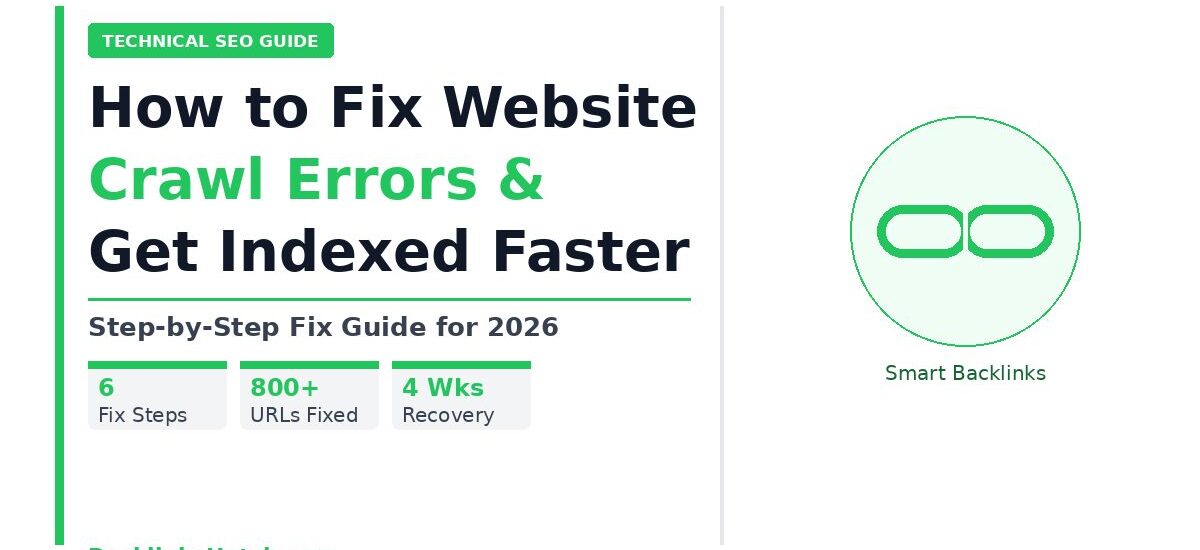
Problem: After a site migration, rankings dropped 60% in 6 weeks. Google Search Console showed 312 crawl errors, and the Coverage report flagged 800+ redirect chain warnings.
Root Cause: The developer set up category page redirects correctly, but product page URLs were redirecting through three intermediate URLs before reaching the final destination.
Actions Taken:
- Exported the full redirect chain report from Screaming Frog.
- Updated all internal links to point directly to final URLs.
- Collapsed all chains to a single 301 redirect at the server level.
- Resubmitted the XML sitemap with clean, direct URLs only.
- Used the URL Inspection Tool to request indexing for the 50 highest-priority pages.
Result: Within 4 weeks, 90% of the lost rankings recovered. Google indexed 3,800 of 4,200 pages within 6 weeks. Organic traffic returned to pre-migration levels. This case study is a real-world proof that a proper website crawl errors fix delivers measurable ranking recovery.
5. Crawl Budget Optimization for Large Sites
Small sites (under 500 pages) rarely need to think about crawl budget. Large sites do. If you have thousands of pages, Google allocates a limited number of crawls per day. Wasting that budget on low-value URLs means important pages wait longer.
| URL Type | Recommended Action | Priority |
|---|---|---|
| Paginated archives beyond page 3 | Noindex or block via robots.txt | High |
| Search result pages (?q=, ?search=) | Block via robots.txt | High |
| Duplicate product filter URLs | Canonical to main category page | High |
| Login and account pages | Block via robots.txt | Medium |
| Thank you and confirmation pages | Noindex via meta robots | Medium |
| Staging or dev subdomains | Block entirely via robots.txt | Critical |
| Low-quality tag pages (1-2 posts) | Noindex or consolidate content | Medium |
| Orphan pages with no internal links | Add internal links or remove | High |
Using Internal Linking to Guide Googlebot
Internal linking is the most underused crawl optimization tool. Googlebot follows links. The more internal links a page receives, the more frequently it gets crawled.
Actions to take:
- Add links to new content from your highest-traffic existing pages.
- Build topic clusters where pillar pages link to supporting pages and supporting pages link back.
- Remove orphan pages (pages with zero internal links). Googlebot finds these only through your sitemap, which is slower.
- Fix broken internal links immediately. Every broken link is a dead end for the bot.
Use your Screaming Frog crawl to identify orphan pages by filtering for pages with zero inlinks. Prioritize adding internal links to these pages if they carry ranking potential. Semrush’s crawl budget research at semrush.com/blog/crawl-budget confirms that internal link depth is a primary factor in crawl frequency.
Improving Server Response Time for Faster Crawls
Google crawls more slowly on slow servers. If your Time to First Byte (TTFB) exceeds 600ms, Googlebot reduces crawl frequency to avoid overloading your server. Faster servers get crawled more.
Steps to improve TTFB:
- Enable server-side caching (Redis, Varnish, or a caching plugin for WordPress).
- Use a Content Delivery Network (CDN) to serve assets from locations close to the user and to Googlebot.
- Optimize your database queries if running a CMS.
- Upgrade your hosting plan if you are on shared hosting with consistent slowdowns.
6. How to Request Faster Indexing After Fixes
After completing your website crawl errors fix, do not wait for Google to rediscover your pages passively. Take active steps to accelerate indexing.
URL Inspection Tool for Priority Pages
In Google Search Console, open the URL Inspection Tool. Enter the exact URL. Click “Request Indexing.” Google queues the page for a fresh crawl. This works for individual pages. Use it for your most important pages after making fixes. Google allows a limited number of indexing requests per day, so prioritize pages that have lost rankings or are brand new and high value.
For ongoing monitoring, set up weekly checks of your Coverage report in Google Search Console. A declining error count over time confirms your fixes are working. New errors appearing after a fix usually point to a CMS plugin or redirect rule that was not updated correctly.
Using IndexNow for Instant Notification
IndexNow is an open protocol supported by Bing, Yandex, and increasingly integrated into Google’s ecosystem. When you publish or update a page, IndexNow notifies search engines instantly.
Plugins like Rank Math and Yoast SEO support IndexNow out of the box for WordPress sites. For custom sites, the API call is a simple GET request to the IndexNow endpoint with your URL and API key.
Publishing fresh content regularly also accelerates the indexing of existing pages. Google crawls sites more frequently when they publish new content. Updating existing posts with new data, additional sections, or refreshed statistics gives Google a reason to re-crawl your site sooner.
Frequently Asked Questions
How long does it take Google to fix crawl errors after I resolve them?
After you fix the underlying issue, Google needs to re-crawl the affected URLs to update its index. For high-priority pages where you request indexing manually, this takes 24 to 72 hours. For other pages, it depends on your crawl budget and how frequently Google visits your site. Larger sites with good authority see re-crawls within a week. Smaller sites sometimes wait 2 to 4 weeks.
What is the difference between a crawl error and an indexing error?
A crawl error means Google could not access the page at all. An indexing error means Google crawled the page but decided not to include it in search results. Crawl errors include 404s, 5xx server errors, and robots.txt blocks. Indexing errors include noindex tags, thin content penalties, and duplicate content signals. Fix crawl errors first. Then investigate indexing issues.
Do 404 errors hurt my SEO directly?
404 errors on pages that nobody links to have minimal SEO impact. But 404 errors on URLs that receive internal links or external backlinks waste link equity and crawl budget. If a 404 URL has backlinks, redirect it to the most relevant live page. This recovers the link equity and solves the crawl error at the same time.
How many crawl errors are acceptable for a healthy site?
No site is perfectly error-free. A small number of 404s from external links pointing to deleted content is normal. What you want to avoid is a pattern of errors: hundreds of 4xx or 5xx responses, broken internal links, or sitemap URLs returning errors. Google Search Console’s Coverage report shows the trend. A declining error count over time shows your website crawl errors fix is working correctly.
Does website speed affect crawl rate?
Yes. A slow server causes Googlebot to crawl fewer pages per day to avoid overloading it. Google’s crawl rate algorithm actively adjusts based on server response times. Improving TTFB below 200ms gives Googlebot the green light to visit more pages per day. This is directly tied to your overall technical SEO health.
What tools do SEO professionals use for crawl error analysis?
The combination of Google Search Console, Screaming Frog SEO Spider, and Ahrefs Site Audit covers 95% of crawl analysis needs. Google Search Console shows what Google actually sees. Screaming Frog replicates the crawl locally with full detail. Ahrefs adds backlink data to identify which broken pages have link equity worth recovering. Semrush and Sitebulb are strong alternatives for large enterprise sites.
Wrap Up
Crawl errors are not a minor housekeeping task. They directly control how much of your site Google can discover, read, and rank. A thorough website crawl errors fix covers your 404s, redirect chains, robots.txt configuration, XML sitemap quality, server speed, and internal linking structure.
Start with Google Search Console. Move to Screaming Frog. Fix errors by priority. Submit your sitemap. Request indexing for key pages. Monitor the Coverage report weekly.
If you want expert help identifying and resolving technical issues across your site, the team at BacklinksHatch.com specializes in technical SEO and link building for growing websites. Reach out via our Guest Post Services page to get started.